XD1+ PERSONAL DUST MONITOR

Truly wearable, real-time personal dust monitoring for every worker at risk from harmful respirable dust.

XD1+ PERSONAL DUST MONITOR

Truly wearable, real-time personal dust monitoring for every worker at risk from harmful respirable dust.

XD1+ PRODUCT DETAILS

  • Personal, wearable dust monitor
  • Designed to provide early warning of personal exposure to airborne particulates
  • On device early warning alerts for increased particulate levels
  • PM1, 2.5, 4.25 and 10 measurement ranges
  • 0.1 ยตm to +10 ยตm particle sizing range
  • Low-end sensor resolution, measuring down to 0.1 ยตm
  • Custom logging intervals from 10 seconds to 60 seconds
  • On-device audio/visual alarms
  • Custom alarm set points
  • Custom STEL and TWA period alarm thresholds
  • On-device self-check routine
  • Battery operated, rechargeable (16 hours+)
  • On-device data logging
  • Live data readout via BreatheLITE application
  • Data analytics functions via BreatheLITE and BreatheMOBILE applications
  • Range of personal mounting options
  • Weighing just 170 g, the XD1+ is a compact, wearable dust monitor, a 1/4 of the size of others. At 112 mm x 64 mm x 25 mm design allows free movement while continuously tracking hazardous dust, providing real-time protection for workers.
  • Advanced processing algorithm, detects, counts and sizes up to 100,000 particulates a minute, to know exactly how much dust your workforce is exposed to, providing accurate real-time information to save lives.
  • Instant alarms allow for decisions to be made regarding use of PPE and RPE, agile process development and smart deployment of ventilation and extraction systems, reducing costs, improving business efficiency, and ultimately saving lives.
  • Ruggedised design, IPX4 ingress protection and lightweight, portability and protective boot means that the XD1+ can be used in any area across your workplace, designed to function in any challenging industrial environment.
  • Bluetooth connectivity and RFID pairing, along with data docking make downloading and visualising the particulate data your XD1+ picks up simple and easy through dedicated BreatheMOBILE application.

      GOT PRODUCT RELATED QUESTIONS?

      Got a question relating to our XD1+ Personal Dust Monitor? Take a look at our FAQs. If you can't find what you're looking for then you can submit a support ticket and an expert will be in touch.

      If the Trolex XD1+ STEL and TWA indicators are flashing red as shown below:

      This means the Trolex XD1+ย has detected an electronic failure of the internal memory. The XD1+ย will alert the user and enter an error state.

      If this happens, please contact our support team to raise a ticket.

      If all three device indicators are flashing red as shown below, this means the device has a non-recoverable operating error.ย 

      If this is happening to your Trolex XD1+ device, please contact theย Trolex service team to raise a new support ticket

      Yes. The AIR XD, XD1+, and XD ONE manuals state that readings will include atomised or misted sizes that pass through the sensor within the particle detection range.

      When locating or operating a monitor near atomising dust suppression systems or moist spray, consider that the instrument may count those particles as part of the measured particulate environment.

      This depends on the frequency and concentration of the dust when the compliance checks are done. In internal lab testing we have compliance checked 3 monitors on one bottle of compliance dust.

      The AIR XS manual is explicit that real-time monitoring is indicative and is not currently suitable for compliance monitoring or regulatory compliance for RCS. Other particulate manuals frame the devices as warning, monitoring, logging, and analysis tools that must be used within their stated limits.

      Always align alarm thresholds, interpretation, and reporting with local legislation, site rules, and the applicable manual.

      If an error occurs when downloading the device data from an XD1+, we recommend that you raise a support ticket and attach your log files that are located in the following locations:

      Windows:ย C:\ProgramData\BreatheLite\

      Mac:ย $UserDirectory\.BreatheLite\Data

      Note:ย the logs are in the format of “yyyymmdd.txt”

      Press, hold, and release the power button after two seconds. XD1+ confirms acknowledgement with an LED sequence.

      Acknowledgement silences the audio alarm, but the LED remains solid while the alarm condition is still present. The alarm resets only when particulate levels fall below 95% of the alarm setpoint.

      By default, BreatheLITE should automatically detect the connected devices. However if theย Automatic Device Discovery service has been turned off, it is still possible to automatically detect devices by following the steps below.
      1. To automatically add a new device, connect the device to the computers USB port before following the steps belowIn the Devicesย section, click on theย Actionsย button and click onย Automatic Device Scan as shown below

      2. A loading message will be displayed while the app automatically detects all of the connected devices
      3. Once the app has finished scanning the new device(s) will be displayed in the Devicesย section as shown below:

      Manually add a device

      To manually add a new device, connect the device to the computers USB port before following the steps below:
      1. In the Devicesย section, click on theย Actionsย button and click onย Manually Add Device as shown below
      2. A new popup will be displayed asking you to enter the devices serial number and model:

      3. Enter the devices serial number into the text box and select the device model from the drop down. After entering the information, click on the Add button. The device serial number can be found on the product label
      4. The new device will be displayed in the Devices section as shown below:

      5. Before downloading data from the device, the COM port of the device will need to be configured. Click on the Settings section and choose the devices COM port as shown below:

      6. Once the COM port has been configured, click on the Save button

      PARTICULATE MONITORING

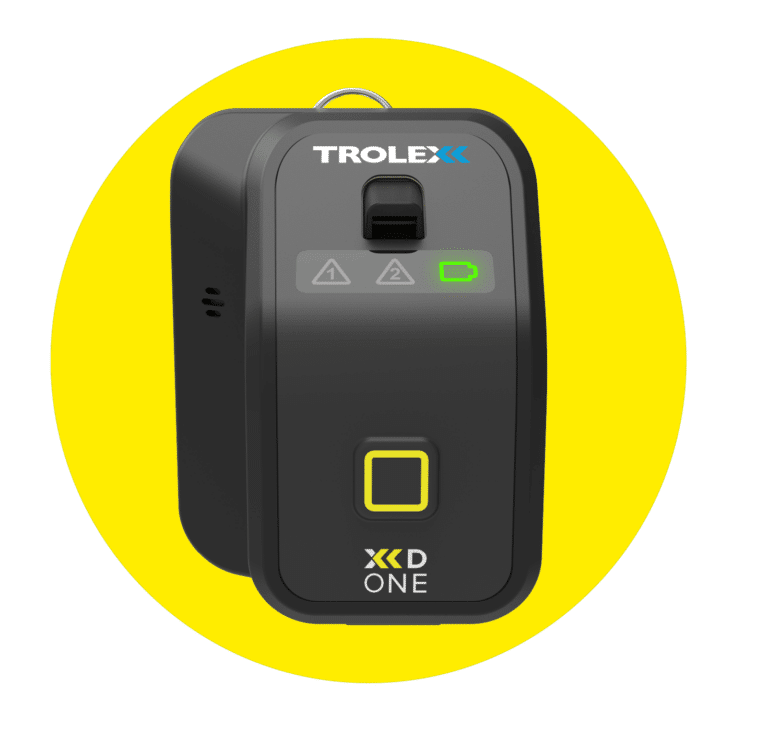
      Image of TX8060 XD ONE Portable Dust Monitor
      TX8060 XD ONE Portable Dust Monitor

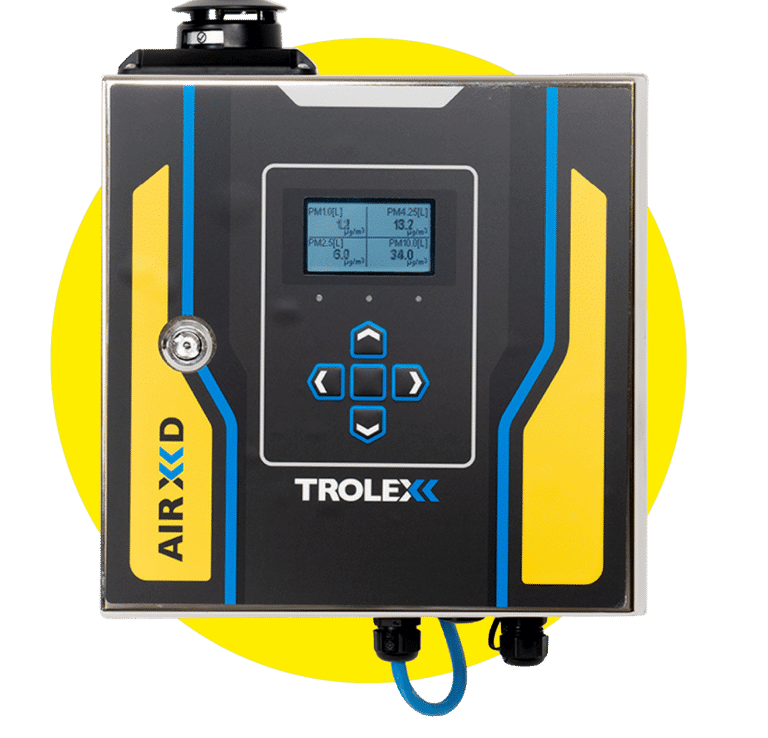
      Image of TX8005 AIR XD Dust Monitor
      TX8005 AIR XD Dust Monitor

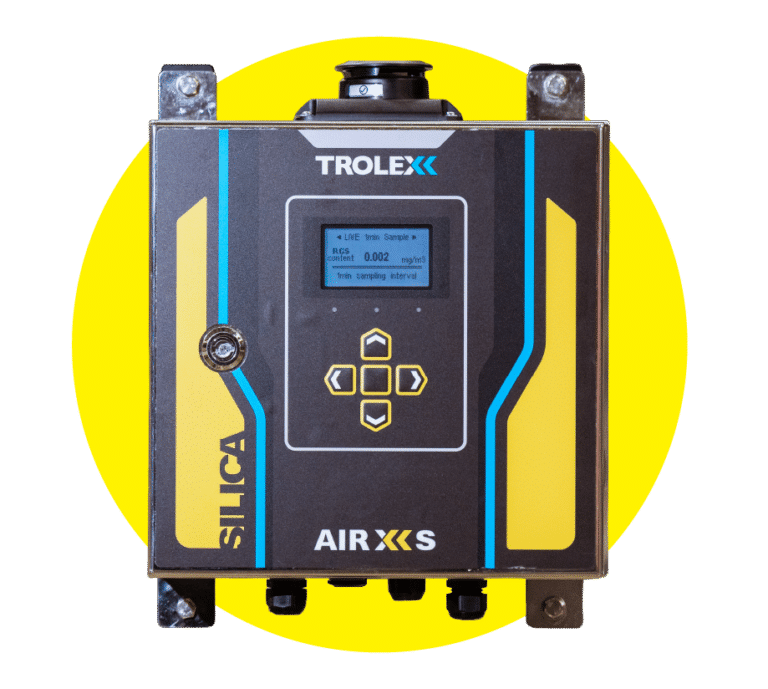
      Image of TX8100 AIR XS Silica Monitor
      TX8100 AIR XS Silica Monitor

      Image of AIR X Software
      AIR X Software

      SALES ENQUIRIES

      GET PRODUCT UPDATES

        You may unsubscribe from these communications at any time. For more information on how to unsubscribe, our privacy practices, and how we are committed to protecting and respecting your privacy, please review our Privacy Policy.

        XD1+: FOR THE WORKER

        Enter your contact details to connect with an expert who can discuss integrating real-time particulate monitoring to your workplace safety processes.

        Close