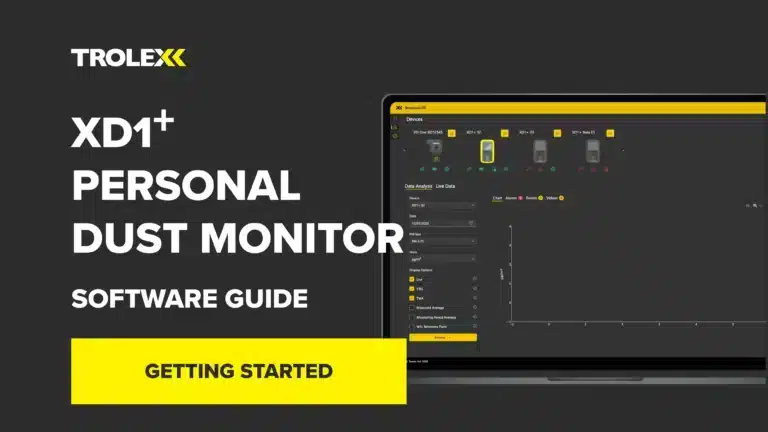
XD1+ SOFTWARE TUTORIAL

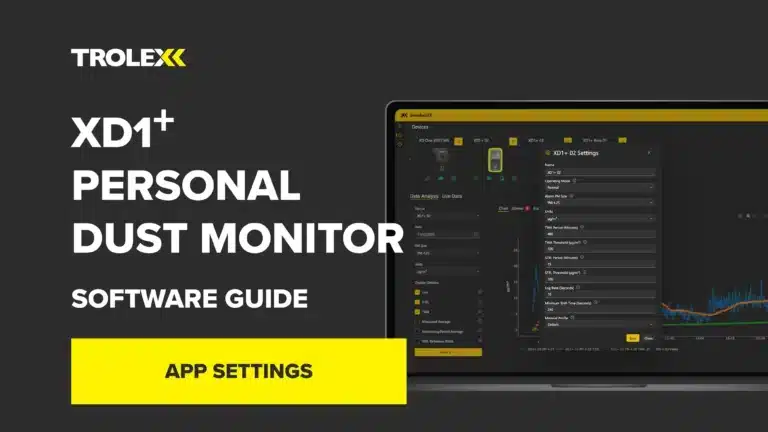
APP SETTINGS

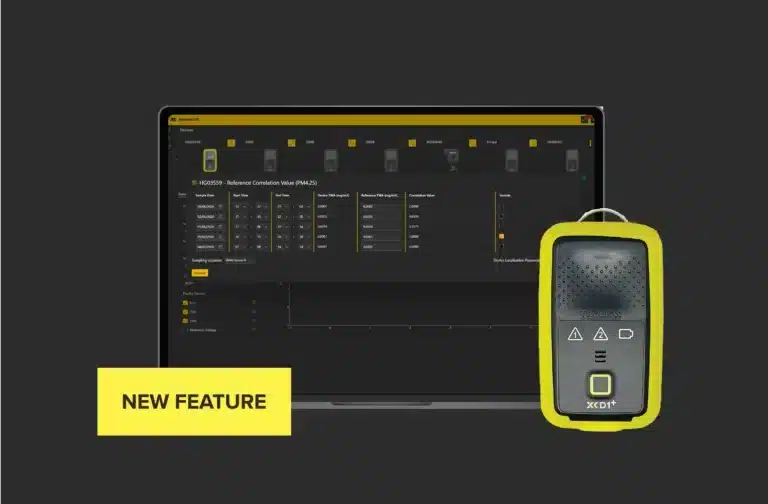
When the Automatic Device Detection setting is enabled, the app will try to automatically detect compatible devices when they are connected to your desktop. We recommend enabling this setting to simplify device management. 

When this is enabled, the app will automatically download device data for connected devices. This helps ensure that the app always has the latest device data without manual intervention. 

When this setting is enabled, the app will check for available firmware updates for connected devices. Keeping firmware up to data can improve device performance and add new features. 

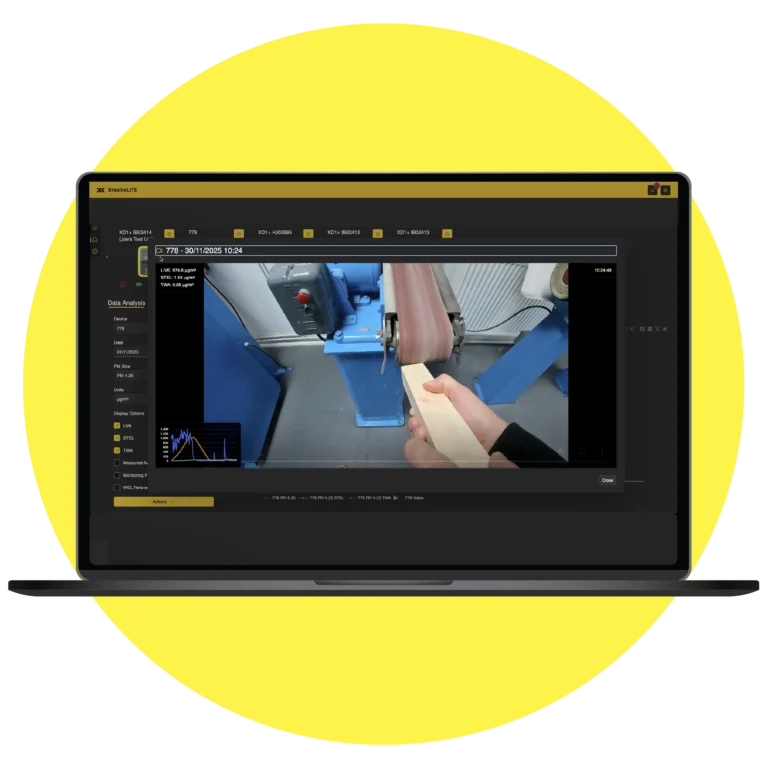
 When this setting is enabled, timestamps will be displayed on the video chart to provide a clear timeline of events.

When this setting is enabled, the Data Analysis section of the app will allow you to analyse data for multiple devices over a selected period of time. 

When this setting is enabled, the app will apply the global settings universally across all devices, when a device is connected. This ensures a consistent configuration experience. When this is enabled the following is displayed:

  • Operating mode: Select device operating mode based on application. Choose from Normal, Cab, DataLog or Error. 
  • Alarm PM size: Select the Particulate Measurement size that the device will alarm on. Choose from PM1, PM2.5, PM4.25 or PM10. 
  • Units: Decide your preferred units of measurement, for either µg/m³ or mg/m³
  • TWA period (Minutes): Set the TWA period to align with working requirements, up to 12 hours. 
  • TWA threshold (µg/m³): Set the TWA Alarm threshold based on permissible exposure limits. This is the value that the TWA alarm will trigger on once the exposure threshold is reached. 
  • STEL period (minutes): Set the STEL period to align with working requirements, up to 15 minutes. 
  • STEL threshold (µg/m³): Set the STEL Alarm threshold based on permissible exposure limits. This is the value that the STEL alarm will trigger on once the exposure threshold is reached. 
  • Log rate (seconds): Set the data log rate for the device. Max log period 60 seconds, minimum 10 seconds.
  • Minimum shift time (seconds): Set the minimum shift time for the XD1+ in seconds.
  • Material Profile: Choose the dust profile that matches your environment. 

GOT PRODUCT QUESTIONS?

If the Trolex XD1+ STEL and TWA indicators are flashing red as shown below:

This means the Trolex XD1+ has detected an electronic failure of the internal memory. The XD1+ will alert the user and enter an error state.

If this happens, please contact our support team to raise a ticket.

AIR XD operates a protective thermal cut-out sequence when the temperature inside the instrument exceeds the maximum operating temperature of 45 °C.

This protective measure is in place to maintain the lifespan and operating functionality of the optical sensor assembly when the AIR XD is installed in environments with high ambient temperatures.

If the internal temperature of the instrument is suspected to be below -10°C, for example, if it has been left powered off for a period of time in a very cold environment, damage to the optical assembly may occur when power is applied.

Allow the instrument to reach safe operating temperature before applying power.

If all three device indicators are flashing red as shown below, this means the device has a non-recoverable operating error. 

If this is happening to your Trolex XD1+ device, please contact the Trolex service team to raise a new support ticket

Our AIR X Particulate Monitors don’t hold any of these accreditations.

No. The Group I manual states that the USB connector on the base of the equipment shall only be connected to the Trolex TX8805 AIR XD USB Drive in the hazardous area.

USB drives with no power source, such as standard USB sticks, may be connected to the USB connector in the safe area for test purposes.

AIR XD is designed to allow infrequent pressure washing during maintenance schedules, but the inlet cap must be closed first.

Keep an appropriate distance between the pressure washer and the instrument, and do not direct the water jet at the underside of the instrument because water must not enter the air flow path.

Yes. The AIR XD provides in and out RS485 terminals so multiple MODBUS devices can be daisy-chained.

Some network installations may require a termination resistor across RS485 lines A and B.

SEE MORE RESOURCES

PARTICULATE MONITORING

Image of TX8061 XD1+ Personal Dust Monitor
TX8061 XD1+ Personal Dust Monitor

Image of AIR X Software
AIR X Software

Image of TX8005 AIR XD Dust Monitor
TX8005 AIR XD Dust Monitor

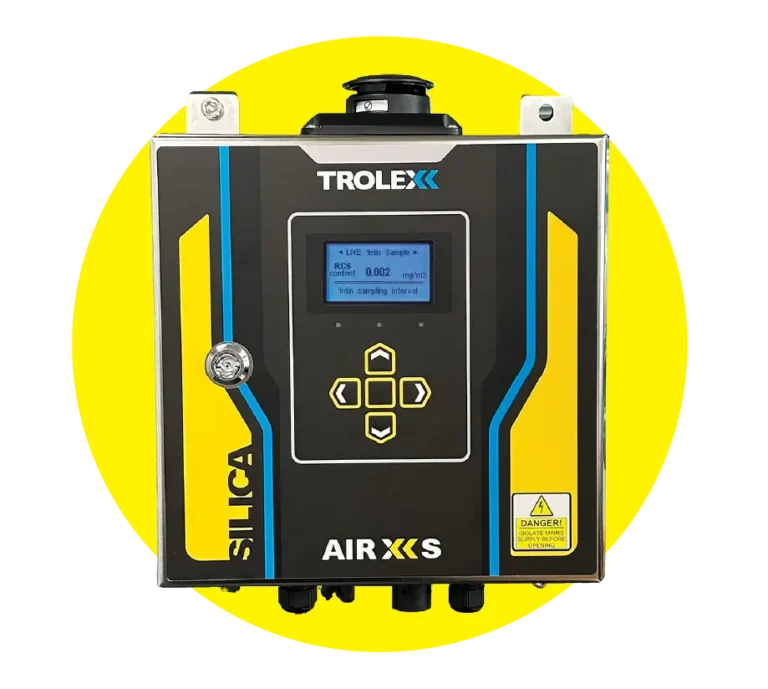
Image of TX8100 AIR XS Silica Monitor
TX8100 AIR XS Silica Monitor

AIR X NEWS + CASE STUDIES

GET AIR X NEWS + UPDATES

    You may unsubscribe from these communications at any time. For more information on how to unsubscribe, our privacy practices, and how we are committed to protecting and respecting your privacy, please review our Privacy Policy.